Find large files
Explore folders in a treemap or sort through large files. Compare duplicates by their BLAKE3 content hashes.
 Disk Inspector
Windows 10 / 11 · v0.3.2
Where did your disk space go?
Explore developer caches, duplicate files, local AI models and PC games. Review what occupies your drive and what you can reclaim.
View release details ↓
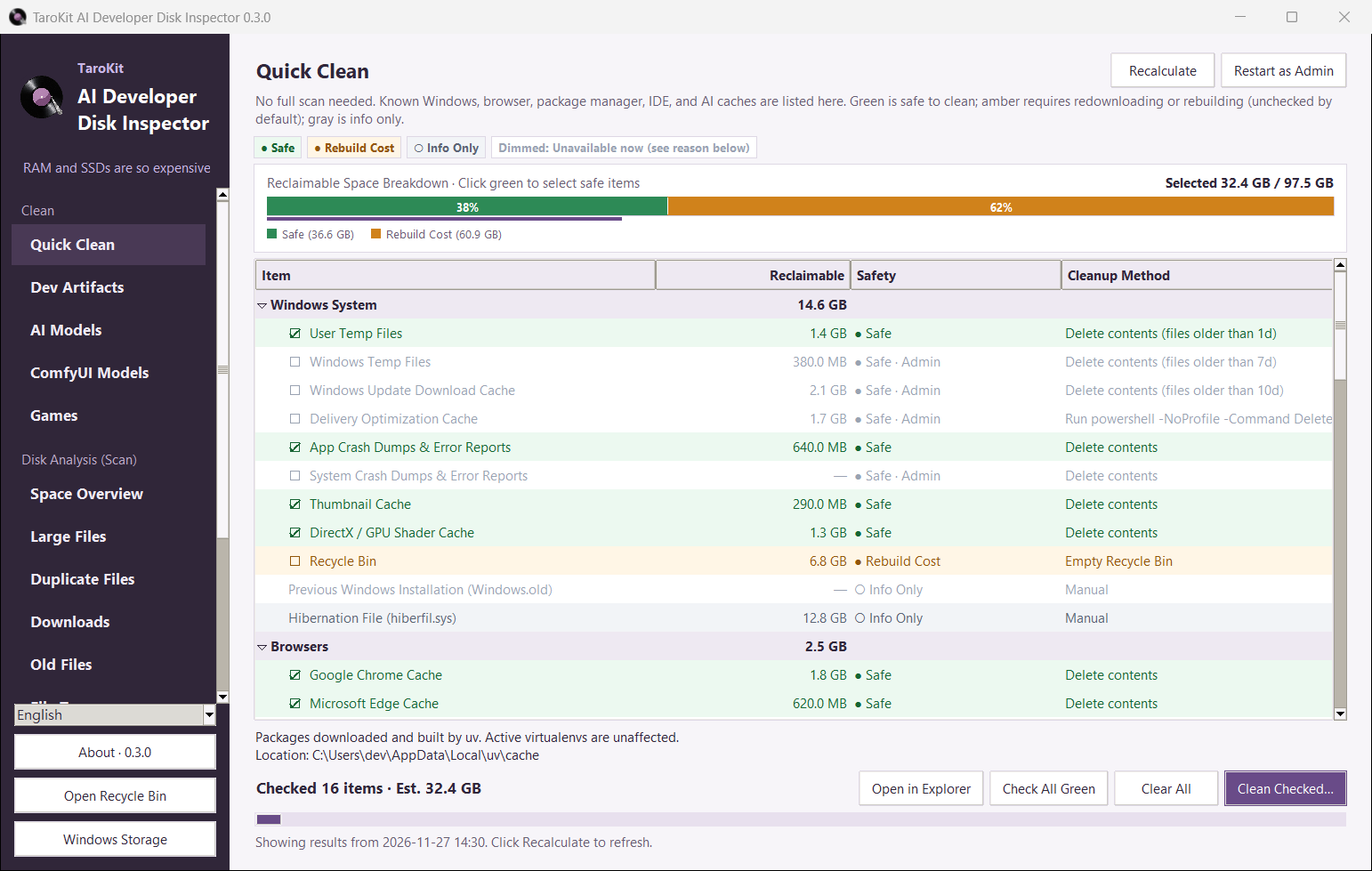
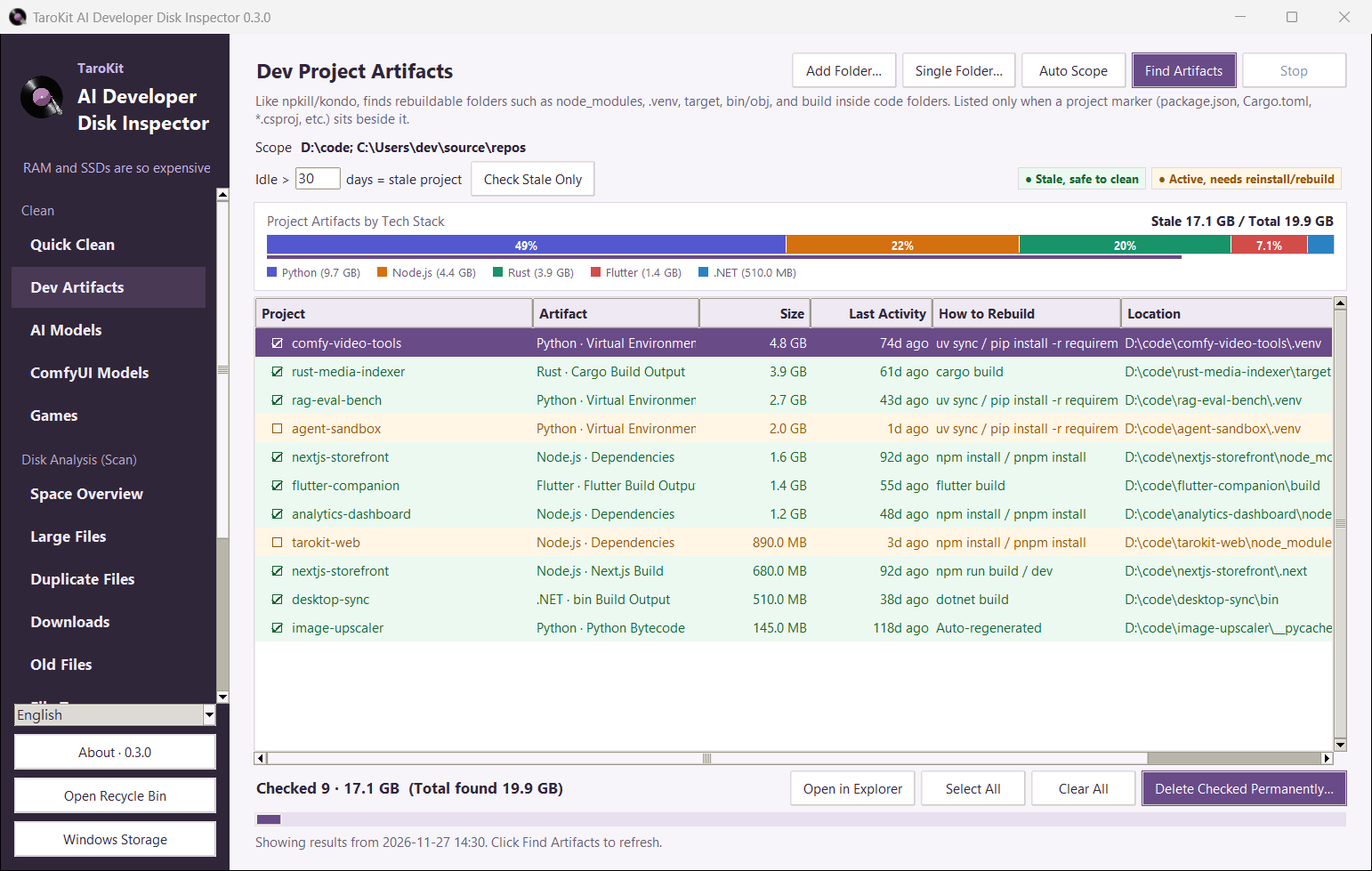
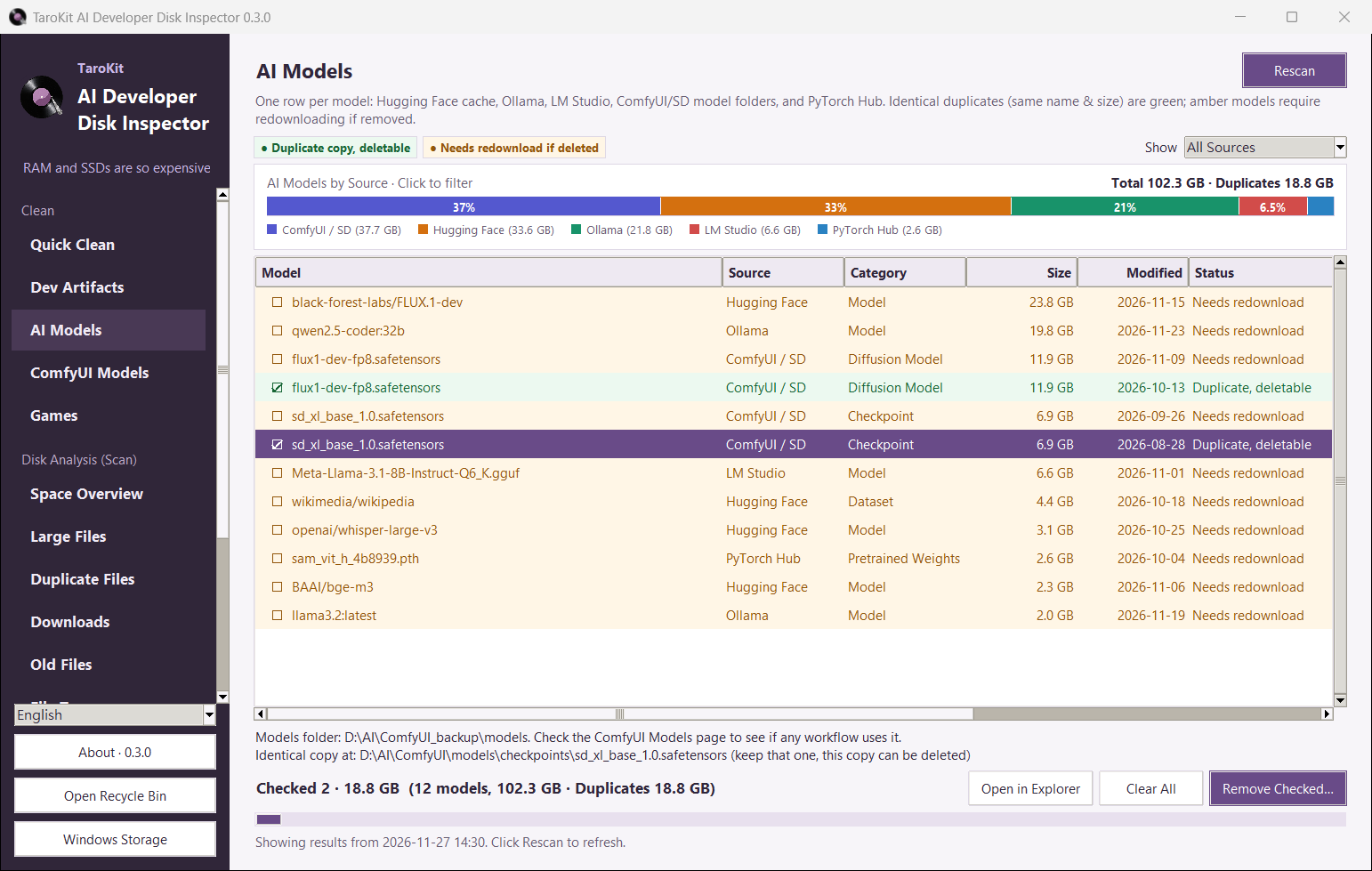
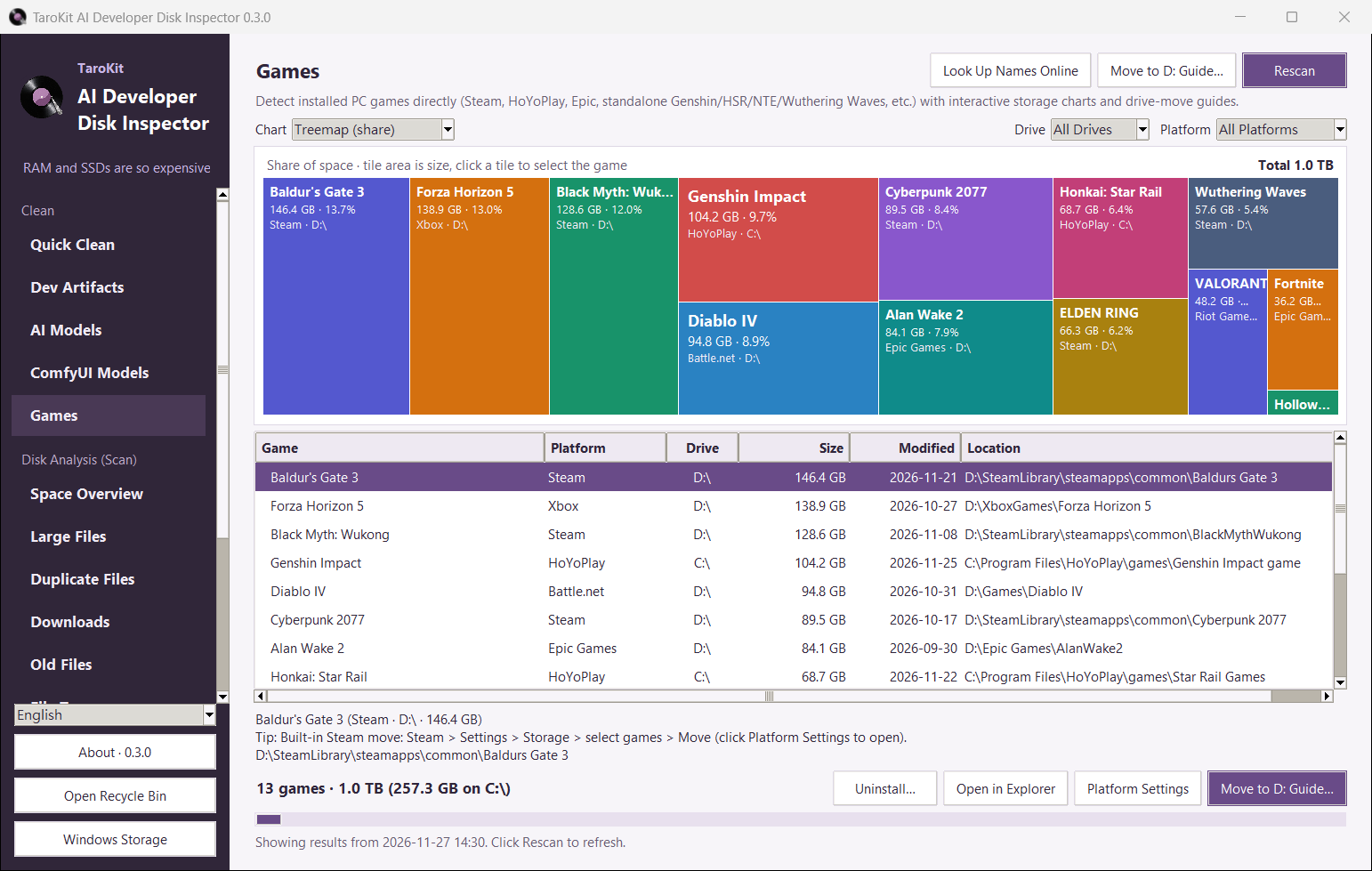
Block area represents size on disk.
Explore folders in a treemap or sort through large files. Compare duplicates by their BLAKE3 content hashes.
Review npm and pip caches, and find dependency folders and build outputs left behind by old projects.
List Hugging Face, Ollama and LM Studio models. Compare ComfyUI models against references in the workflows you scan.
Supports fast NTFS MFT scanning. Every candidate shows green, amber, or red guidance with its full path, and moves to the Recycle Bin by default before permanent deletion.
Compiled from each product’s official pages. Green means the feature is offered. The four cards highlight what Disk Inspector focuses on.
| Aspect | TaroKit Disk Inspector | WizTree | WinDirStat | DiskRaptor | TreeSize Free |
|---|---|---|---|---|---|
| Price & license | ✓Free, open source (GPL-3.0), commercial use included | ◐Free (personal) / Paid (commercial) | ✓Free, open source (GPL) | ✓Free, open source (MIT), optional Pro | ◐Free edition: personal, non-commercial only |
| Tech stack | Python + Tk (+ Rust BLAKE3) | Native app | Native C++ | Rust + Tauri 2 | Windows desktop app |
| Platforms | Windows 10/11 only | ✓Windows / macOS / Linux | Windows only | ✓Windows / macOS / Linux | Windows only |
| Scan engine | ✓NTFS MFT fast scan (admin) + SQLite | ✓Reads the NTFS MFT directly | ✓Directory scan; NTFS MFT option since 2.5 | ✓Native multi-threaded | —Not stated on official pages |
| Visualization | ✓Treemap, ranked bars, stacked charts | ✓Treemap | ✓Treemap | ✓Treemap, 3D Galaxy view | ✓Treemap |
| Duplicate finder | ✓Full-content BLAKE3 (multi-threaded) | ◐Name / size / date only, not content | ✓Yes (selectable hash) | ✓Yes (xxHash3) | —Not in Free (paid editions have it) |
| Cleanup risk ratings | ✓Green / Amber / Red ratings + reasons | —Not listed | —Not listed | —Not listed | —Not listed |
| Dev caches & build artifacts | ✓50+ caches + node_modules / .venv / target | —Not listed | ◐Custom cleanup commands only | —Not listed | —Not listed |
| Local AI models & ComfyUI | ✓HF / Ollama / LM Studio + ComfyUI workflow audit | —Not listed | —Not listed | —Not listed | —Not listed |
| PC game library | ✓Steam / HoYoPlay / Epic / Standalone + move guides | —Not listed | —Not listed | —Not listed | —Not listed |
| Space growth & cleanup plan | ✓Auto baseline diff + target-GB plan | —Not listed | ◐Exports scan snapshots | —Not listed | ◐Snapshot comparison is paid |
Consider WizTree or DiskRaptor if you mainly want general-purpose disk scanning, a 3D view, or macOS/Linux support. Choose Disk Inspector if you want Windows-focused cleanup guidance for developer caches, local AI models, and PC games.
“Not listed” means the official pages read in November 2026 did not mention it, not that it is certainly missing. This table covers only the tools shown; some newer open-source tools also clean developer caches or AI models.
Use Windows 10 or 11 on an x64-compatible system. Both packages include the Python runtime.
TaroKitDiskInspector.exe.Open PowerShell in the folder containing the Setup EXE. This installs quietly and waits for Setup to finish.
Start-Process -Wait -FilePath ".\TaroKit-DiskInspector-Setup-0.3.2.exe" -ArgumentList "/VERYSILENT","/NORESTART","/SP-"Install Windows Python 3.12 with Tk and the Python launcher. In the folder containing app.py, run the following command to open the desktop app.
py -3.12 app.pyOn first launch, open Quick Clean to review known caches, or start a scan to explore the space overview and large files.
Application version
Windows 10 / 11 · x64 · 8 interface languages
v0.3.2 adds a Dashboard start page showing drive free space, saved cleanup and page figures, suggested next steps, space growth trends, and Refresh All without scanning on launch. AI Models and ComfyUI Models gain drill-down treemaps grouped by model type, family, source, or reference status; AI Models adds an Exclude ComfyUI toggle, and ComfyUI Models adds quick re-audit plus safe Recycle Bin cleanup for unreferenced models (re-checking all workflows before removal). Also unifies cleanup result reports with live timing, shows scan elapsed time compared with the last full scan, stops flagging package-manager stores as projects, and fixes Explorer file selection for paths with spaces.
v0.3.1 focuses on cleanup safety and reliability: Quick Clean previews actual cache roots and locks the confirmed file scope; AI Models require full-content hash verification and another valid copy before removing duplicates; closing the window during cleanup lets you wait or stop at a safe boundary and saves a summary. Canceling a scan keeps the last complete scan, fixes Windows case-insensitive shader-cache database migration, leaves Dev Artifacts unchecked by default with rebuild guidance, separates estimated, Recycle Bin, and actual drive free-space results, and ships CI-built packages with SHA-256 checksums.
v0.3.0 adds a Games page that sizes up Steam, HoYoPlay, Epic, Xbox, Riot and other launchers, shows localized game names and links a move-to-D: guide. Charts get a clearer palette and treemaps; Space Overview can expand and drill into folders by clicking tiles. Scans now tune themselves for HDD or SSD, show MFT fast-scan status with a one-click restart as administrator, and the app checks for updates once a day (can be turned off in About).
v0.2.2 fixes clipped confirmation and close buttons across modal dialogs (Quick Clean confirmation, cleanup report, Recycle Bin preview, text viewer, and model scan scope).
v0.2.1 moves category queries to background workers so switching tabs never freezes; rewrites Cleanup Plan with indexed cancellable queries (~3 s for a 100 GB target); counts locally synced OneDrive/cloud folders accurately; adds live RAM and pagefile.sys/hiberfil.sys advice, Office/Teams caches, multi-drive project root detection, and browser download folder detection.
v0.2.0 reworks Disk Inspector for developers and local AI workflows: adds ~50 one-click cleanup targets for Windows, browsers, package managers, IDEs, and AI caches (preferring official clean commands); adds Dev Artifacts finder (node_modules, .venv, target), per-model AI inventory (Hugging Face, Ollama, LM Studio, ComfyUI, PyTorch Hub), ComfyUI workflow reference audit, green/amber/red safety verdicts, and persistent scan results.
Start with a regular Windows account. The app marks cleanup items that need elevation. The NTFS MFT fast scan also requires administrator rights.
Read the reason and full path for each item. Green marks cleanup candidates, amber calls for review, and red marks items to keep. Check personal files and downloaded models carefully.
Scan results and settings are stored locally in %LOCALAPPDATA%\TaroKit\DiskInspector. The last scan and its timestamp are available when you reopen the app.
WizTree and TreeSize focus on general treemap scanning. Disk Inspector adds developer- and AI-aware categorization for npm, pip, node_modules, .venv, Hugging Face, Ollama, LM Studio, and ComfyUI workflow references with safety ratings.
No. Every cleanup shows full paths, estimated reclaimed space, and safety ratings first, and moves files to the Windows Recycle Bin by default.
 Support TaroKit on Ko-fi